Sunday, August 7, 2011

Weekly Roundup, Coupons, Pinterest Love and Inspiration


Good Sunday Morning!!! Drinking my coffee and getting this post together. In the background my kids are just not getting along. I am waiting for "moooooooooooommmmm" but in the meantime, I will be getting this post together, lol. Aaaahhh the joys of small children - haha.


Anyways...... on with the Pinterest love that I have found all week! Some are tutorials and some are just beautiful projects that inspire me :) You can find me on Pinterest HERE!

Pin It


 Free printable ephemera inspired tickets


  Links to pretty sites. Some are really gorgeous


 Love this card! Great inspiration piece!


 Love this vintage inspired framed paper butterflies. Cute for my daughter's room


butterfly paper bags Love this pretty cone paper packaging!


 DIY Magnets with paper scraps


 Love this rose garland! So going to have to do this! This is not a tutorial. Simply an inspiration piece!


 Pretty DIY Fabric Flowers!


 DIY Frame Glue two frames together for a chunkier look


 Free Christmas Ticket Stub Printables 


 Another way to distress paper 


 What a great little way to display your earrings- DIY


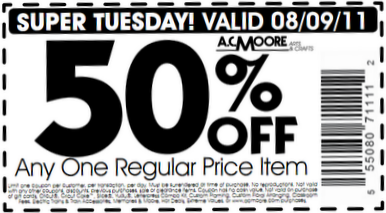
And now for the coupons.......


Couple of things I made this week.....

Mini Blank Note cards, Street Signs, Ephemera and Vintage Inspired, Brown, tanMADE With LOVE Hang Tags - Pink, Stamped on the front and back, Hearts, 1" x 2"CUPCAKE Tags - Purple, Handmade, Hand Stamped, Small, Heart
Duck Place Cards - Vintage Inspired Yellow - Hand Aged Stamped - LoveSnowflake Hang Tags - Brown, Scalloped, Vintage Inspired, Hand Stamped, AgedVintage Inspired Crown Hang Tags - Scalloped Circle - Manila Cream Chocolate Brown

Friday, August 5, 2011

Freebie Friday - TONS of goodies! :)

It's freebie friday!!!! I have alot to do today, so I wanted to share these first! There are quite a few freebies here for you to use! Especially with those amazing Smash Books! ;) I am so going to be making my own! And why not have a few things all ready to use with it! I am making mine out of a composition notebook though! I will be doing a tutorial for that though as soon as I get a new camera. My LCD screen on my camera is shot, and therefor I am taking my pictures blindly while crossing my fingers! LOL! But I am having a slightly hard time choosing my camera. I was thinking about getting the Nikon D3000, but then I saw a thing on etsy that some lady did where she compared 3 cameras, and believe it or not, the $250 Fuji camera took BETTER pictures than the $500 Nikon D3000. So yes, I can save $250 bucks, but I am happy. I am only curious if I can add a lens to it. Anywho, enough of my rambling.... here are the freebies! XOXO - Remember to click to download! Right click and choose {save as}

Pin It


Hope you have a wonderful day!!!!! 

Thursday, August 4, 2011

Adding A Pinterest Button to EACH Blog Post Tutorial

Well, after all the struggling to figure out how to add the Pinterest button to each blog post, Pinterest finally changed it. Thank goodness! It was such a pain before, but it was so useful and helpful that I dealt with it. Well, like I said, they did fix it and it's easier now. If you already have the "Pin It" Pinterest button on your other blog posts, you will notice that they no longer work anymore though, which means you will have to go in and fix them.

Pin It

First, figure out which blog post you are going to be working with. I am going to be using my "Handmade By Labels" one for this tutorial.


First we're going to take the old post, with the old Pinterest button... 
We're going to redo this one, "Free printable handmade by labels" 

Next we're going to find the Pinterest Goodies Page to do the code....


Then for the post page, you will click the web address that is in the bar at the top. It looks like this...


When Pinterest says "add code" they mean the one at the top of the page for the post AND when you click on the image. Usually the image link will look something like this:
That page is for the image below that I want pinned..... 


You are going to add the Pinterest code while you are in EDIT HTML mode as shown below.... I highlighted it. You can also see where I had the OLD Pinterest code.


So you will take the info from your pages, plug it into the pinterest page and then plug it in there


Then at the bottom you will see it creates the code. You will then copy and paste this code! 


Then you will add it to your post. I usually add mine above the photo.


Then you will simply publish your post 


Then "View Post" and you will see your new pin it button! 


And then you click on the pin it button and this box pops up! 


and if you go to your Pinterest Boards, you will see it like this! 


And you can find me here on PINTEREST

Hope this helps. If you have any questions please send me a message! :) 
XOXO